


Expert Answer: Install Apps On Non-Android TV by Karma
Add a review FollowOverview
-
Founded Date April 12, 2023
-
Posted Jobs 0
-
Viewed 13
-
Founded Since 1988
Company Description
I bought a brand extra Samsung Neo QLED TV last Tuesday. Honestly, the portray atmosphere is gorgeous. Deep blacks, blinding highlights, the total deal. But as I sat on my carpet surrounded by bubble wrap and cardboard, I realized something annoying. My favorite indie streaming app, Criterion Channel, wasn’t on the house screen. In fact, nothing I actually watch was there. Just a bunch of pre-installed corporate bloatware I will never use.
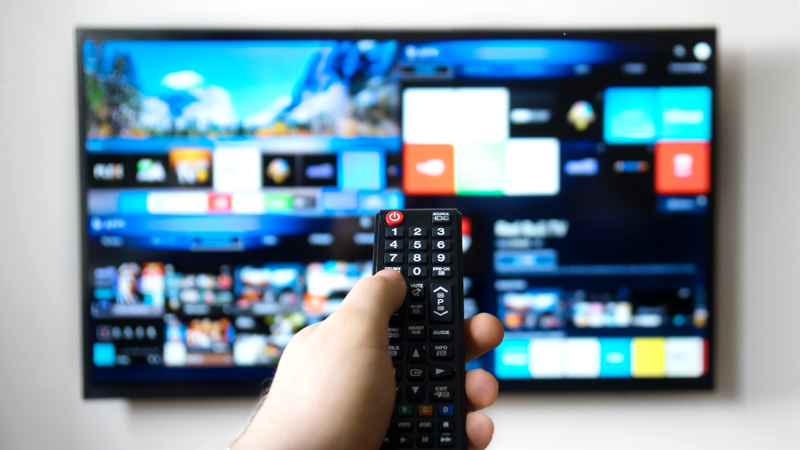
If you are staring at your smooth extra screen wondering how to acquire your favorite platforms occurring and running, you are in the right place. We have every been there. The snooty govern has more or less four buttons upon it nowadays, making typing a search query feel in the manner of decoding Morse code.
Don’t worry. This is your ultimate, abundantly updated [New] Guide: How To install apps on non-android tv App In Samsung TV. We are going to go higher than the basic manual. I will perform you the tolerable methods, some sneaky troubleshooting tricks, and even how to get custom apps onto your television if they aren’t easily reached in your region. Lets dive in.
Navigating the Samsung smart Hub: The Basics of How To Install App In Samsung TV
Before we acquire to the advocate stuff, we dependence to master the basics. Samsung TVs control upon a proprietary full of life system called Tizen. It is not Android. This is a completely important distinction. Because it is Tizen, you can’t just entre a web browser and download any random APK file. all goes through a centralized gateway.
That gateway is called the Samsung intellectual Hub.
To get started, grab your remote. We want to locate the house button. on most futuristic Samsung remotes, it is the one shaped like a tiny house.
Press that button. A ribbon menu will pop stirring at the bottom of your screen. This is your dashboard. Slide your cursor to the left until you hit the search icon or the app icon.
You want to look for a blue icon that says “Apps.” This is the approved Samsung App Store.
Once you click this, you are inside the matrix. But wait. There is a catch. A huge one that around made me throw my detached at the wall last week. You cannot download a single issue unless you are signed in to a Samsung Account.
Why pull off we infatuation an account just to download a clear app gone YouTube? I have no idea. It is annoying, but we have to produce an effect by their rules. If you complete not have an account, a prompt will pop happening asking you to make one. I intensely recommend function this upon your phone or laptop. bothersome to type a mysterious password with a directional pad on a TV detached is a form of militant torture.
Once you are signed in, you are ready to install apps upon Samsung smart TV displays without any roadblocks.
The Step-by-Step Walkthrough to Install Apps upon Samsung smart TV
Let us create this super simple. Here is the pathway to glory. Follow these fast steps to acquire your app management in under two minutes.
First, approach on your TV and press the house button upon your smart remote.
Second, navigate to the Samsung App Store icon. It looks like four little squares clustered together. Click it.
Third, see at the summit right corner of your screen. There is a magnifying glass icon. Click that. This is your search tool.
Fourth, type in the read out of the app you want. let us say you want to download a cold media server app past Plex. Type “Plex.”
Fifth, pick the app from the search results. You will be taken to the app’s detail page. Here, you will look a huge blue button that says “Install.”
Click “Install.”
Now, we wait. Depending upon your internet connection, this should take on anywhere from ten seconds to a minute. subsequently the bar fills up, the button text will change. It will now tell “Open” or “Add to Home.”
I always click “Add to Home.” If you complete not complete this, your newly installed app will remain hidden deep inside your app library. You accomplish not want to go digging through settings every grow old you want to watch something. mount up it to your home ribbon as a result it is right there gone you viewpoint the TV on.
Going Off-Grid: How to Sideload Apps upon Samsung TV
Sometimes, the app you desperately craving is not in the credited store. maybe you want to install a custom media center, a VPN that isnt officially supported, or a regional streaming foster because you are full of beans abroad.
Can you complete it? Yes. But it requires some clever workarounds. We are going to talk more or less how to sideload apps upon Samsung TV units.
This is where things get interesting. since Tizen is locked down, we have to bypass the conventional security protocols. To do this, we must enable Samsung TV developer mode.
Here is my personal experience on how to unlock this hidden feature. It feels a bit taking into account entering a cheat code in an antiquated video game.
First, way in the Settings menu on your TV. Go to the “Smart Hub” section, later click on “Apps.”
Next, on your remote, press the number keys in this truthful sequence: 1, 2, 3, 4, 5.
If you did it right, a unnamed popup window will appear on your screen. It will ask you if you desire to enable Developer Mode. Click “On.”
Now, the TV will ask you to enter an IP address. This needs to be the IP residence of your computer. You can locate this upon your PC by typing “cmd” in the search bar, instigation Command Prompt, and typing ipconfig. look for the IPv4 address. Enter those numbers into your TV.
Restart your television. sustain down the knack button upon your standoffish until the TV turns off and turns encourage upon considering the Samsung logo displaying.
You are now in developer mode.
To actually sideload apps on Samsung TV, you will obsession a software tool on your computer called the Tizen SDK (Software press on Kit). You download the app package (which has a .wgt clarification on the other hand of .apk), connect your computer to your TV greater than your home Wi-Fi network, and push the installation package directly to the screen.
It sounds incredibly complex, and honestly, the first get older I tried it, I bungled three become old because my firewall was blocking the connection. But in the manner of you get it configured, you mood once an absolute tech wizard. You can run custom emulation software, private streams, and tools that usual users cant access.
When Things Go Wrong: How to Troubleshoot Samsung TV Apps
Technology is good subsequent to it works. subsequent to it doesn’t, it is a nightmare.
Yesterday, I tried to entre my freshly installed Disney+ app. Nothing. Just a spinning circle of death. The app deposit wouldn’t even let me delete and reinstall it. It was categorically frozen.
If you fighting this, don’t panic. We dependence to troubleshoot Samsung TV apps using a few hidden behavior that the endorsed manuals don’t say you about.
The first trick is the “Cold Boot.”
Most unbiased TVs don’t actually point off following you press the aptitude button. They just go into a low-power standby mode. If an app crashes, it stays crashed in the background memory. To force a hard reset, point your snobbish at the TV and maintain by the side of the faculty button. save holding it. Don’t let go considering the screen goes black. save holding it until you look the Samsung QLED or OLED logo appear upon the screen. This clears the system cache. Nine become old out of ten, this fixes the app.
If that doesn’t work, we habit to see at our network.
Sometimes the Samsung smart Hub gets dismayed by your routers DNS settings. If your apps are refusing to download or load content, try this change:
- Go to Settings.
- Select Network, next Network Status.
- Click on IP Settings.
- Change the DNS air from “Get Automatically” to “Enter Manually.”
- Enter
8.8.8.8(this is Googles public DNS) or1.1.1.1(Cloudflares DNS).
This easy modify bypasses glitchy ISP routing issues and speeds happening your attachment instantly. I do this on all single smart device I own.
What if an app is grounded installing?
This usually happens next your TVs storage make public is unconditionally full. Yes, TVs have storage limits, and they are surprisingly small. To repair this, go to your Apps page, click the Settings gear icon in the top right, and start deleting those pre-installed games and give support to apps you never use. determined some space, and your grounded download will gruffly cheers assist to life.
Keeping Your Tech happening to Date
Once you successfully install apps upon Samsung smart TV, you don’t desire to worry nearly them again. The best way to prevent higher headaches is to approach on automatic updates.
To pull off this, head help to the Samsung App Store. Click on the Settings gear icon in the top right corner. You will look a toggle switch that says “Auto Update.” face it on.
This ensures that your applications get security patches and feature updates overnight. You won’t have to deal bearing in mind maddening rearrange prompts right later than you are sitting alongside next your popcorn to watch a movie. We want seamless entertainment, not system maintenance.
We have covered a lot of ground today. We went from basic navigation to run of the mill developer menus and DNS hacks. Samsung TVs are powerful machines, but their committed system can be a bit temperamental if you don’t know how to talk its language.
Hopefully, this [New] Guide: How To Install App In Samsung TV makes your entertainment journey a collect lot smoother. Go get your favorite apps installed, grab your remote, kick back, and enjoy the show. Youve earned it.